
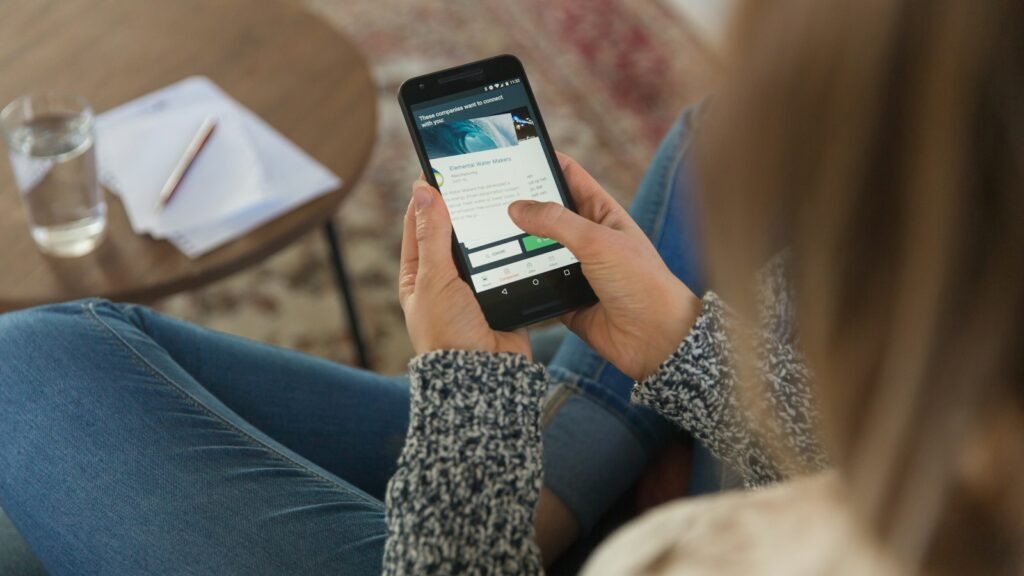
Short answer: a smart diffuser lets you set when it works, how strong the scent is and how long it pauses between bursts, all from your phone. WiFi models (using the ScentArea or Aroma IOT app) can be controlled from anywhere, while Bluetooth models (using the BT-Aroma app) are controlled when you’re nearby. Setup takes about five minutes. The most common problem, a diffuser that won’t connect, is almost always fixed by joining a 2.4GHz WiFi network instead of 5GHz.
WiFi or Bluetooth: what’s the difference?
| WiFi diffusers | Bluetooth diffusers | |
|---|---|---|
| Control range | From anywhere with internet | Within Bluetooth range, usually the same home or floor |
| Best for | Villas, offices, shops, holiday homes, managing several devices | Apartments and single rooms where you’re usually nearby |
| Setup | Needs a 2.4GHz WiFi network | Just pair with your phone |
| Examples | Small WiFi, X-Large, Tower Premium, Industrial 2000 | Small Plus, Medium |
The Premium range (Premium Small, Premium Medium and Premium Large) supports both WiFi and Bluetooth, so you get the best of both.
Which app does my diffuser use?
- ScentArea: Premium Small, Premium Medium, Premium Large, Tower Premium, X-Large, Industrial 2000 and Industrial 5000.
- BT-Aroma: Small Plus and Medium.
- Aroma IOT: Small WiFi.
All three apps are available on iOS and Android. The product box and manual also name the correct app.
Setting up a WiFi diffuser, step by step
- Check your network. The diffuser needs 2.4GHz WiFi. Many UAE routers broadcast 2.4GHz and 5GHz under the same name. If pairing fails, create a separate 2.4GHz network name in your router settings, or ask your provider to do it.
- Install the app and create an account.
- Put the diffuser in pairing mode as shown in the manual, usually by holding the power button until the indicator flashes.
- Add the device in the app and enter your WiFi password. Keep your phone close to the diffuser during setup.
- Name the device by room (“Majlis”, “Reception”). It makes managing several units much easier.
Setting up a Bluetooth diffuser
- Turn on Bluetooth on your phone.
- Open the BT-Aroma app and search for devices. Pair from the app, not from your phone’s Bluetooth menu.
- Once connected, set your schedule. You can also use the manual buttons on the diffuser if your phone isn’t nearby.
The three settings that matter
1. Working hours
Set the diffuser to run only when the space is in use. Some practical examples:
- Home: 5pm to 11pm on weekdays, longer at weekends.
- Office: 30 minutes before staff arrive until closing.
- Holiday home: start a couple of hours before guests check in.
2. Work and pause time
This is the real intensity control. The diffuser sprays for a few seconds, then rests. Shorter pauses mean stronger scent and more oil used. A balanced starting point is a short spray with a pause several times longer. Adjust from there over a few days.
3. Days of the week
Most apps let you set different schedules for different days, which is useful for offices closed on weekends or homes where you entertain on Friday evenings.
Smart tips that save oil
- Two schedules a day work better than one long one. For example, morning and evening at home, with a gap while everyone is out.
- Use a gentler setting in summer. The AC is running harder and moves scent further.
- Switch off remotely when travelling. One of the best reasons to choose WiFi.
- Check your schedule after a power cut. If the scent seems off, confirm the settings in the app.
For more ways to stretch each bottle, see how long 170ml and 480ml diffuser oils last.
Troubleshooting
The diffuser won’t connect to WiFi
Make sure it’s a 2.4GHz network, the password is correct, and the phone and diffuser are close to the router during setup. Restart the diffuser and try again.
The app shows the device offline
Check that the diffuser has power and your WiFi is working. If you changed your router or password, you’ll need to add the device again.
Bluetooth won’t pair
Pair from inside the app, not from the phone’s Bluetooth settings, and make sure no other phone is currently connected to the diffuser.
Frequently asked questions
Can I control my diffuser when I’m not at home?
Yes, with a WiFi model. Bluetooth models are controlled when your phone is within range.
Why doesn’t my diffuser work with 5GHz WiFi?
Like most smart home devices, these diffusers use 2.4GHz, which has better range through walls. Most routers can broadcast both bands.
Can I control several diffusers from one app?
Yes. Add each device to the app and give each one its own name and schedule.
Do I need the app to use the diffuser?
No. All models also have manual controls. The app just makes scheduling and fine-tuning much easier.
Which smart diffuser is best for an apartment?
The Small WiFi covers up to 60 m² and the Small Plus covers up to 100 m². Choose WiFi if you want to control it while you’re out.
Still choosing a size? Read our guide to choosing a diffuser by room size.
